
Telehealth isn't going anywhere, but plenty of consult rooms are still running it on a laptop webcam or a cheap camera clipped to the top of a monitor, with a doctor leaning in to be heard. It works, but it doesn't look or sound like a proper consult.
A Perth GP practice we look after wanted better than that. They'd recently moved to Zedmed, which has telehealth built in, and wanted every consult room set up properly for video. Here's what we installed, why, and what we'd check in any room before the first video consult.
The hardware: one screen that does everything
We went with the HP E24mv G4, a 23.8 inch conferencing monitor. The camera, microphones and speakers are built into the screen itself.
Why that instead of a normal monitor and a webcam:
- One device on the desk. No webcam hanging off the monitor, no separate speaker, no extra cables to get knocked out by the cleaner.
- The camera is where it should be. Centred at the top of the screen, so the doctor is looking roughly at the patient, not off to one side.
- A physical privacy shutter. The camera can be covered when it's not in use.
- Built-in microphones and speakers. Clear enough for a consult without a headset.
- A proper stand. Height, tilt and swivel adjustment, so it suits each doctor and each desk.
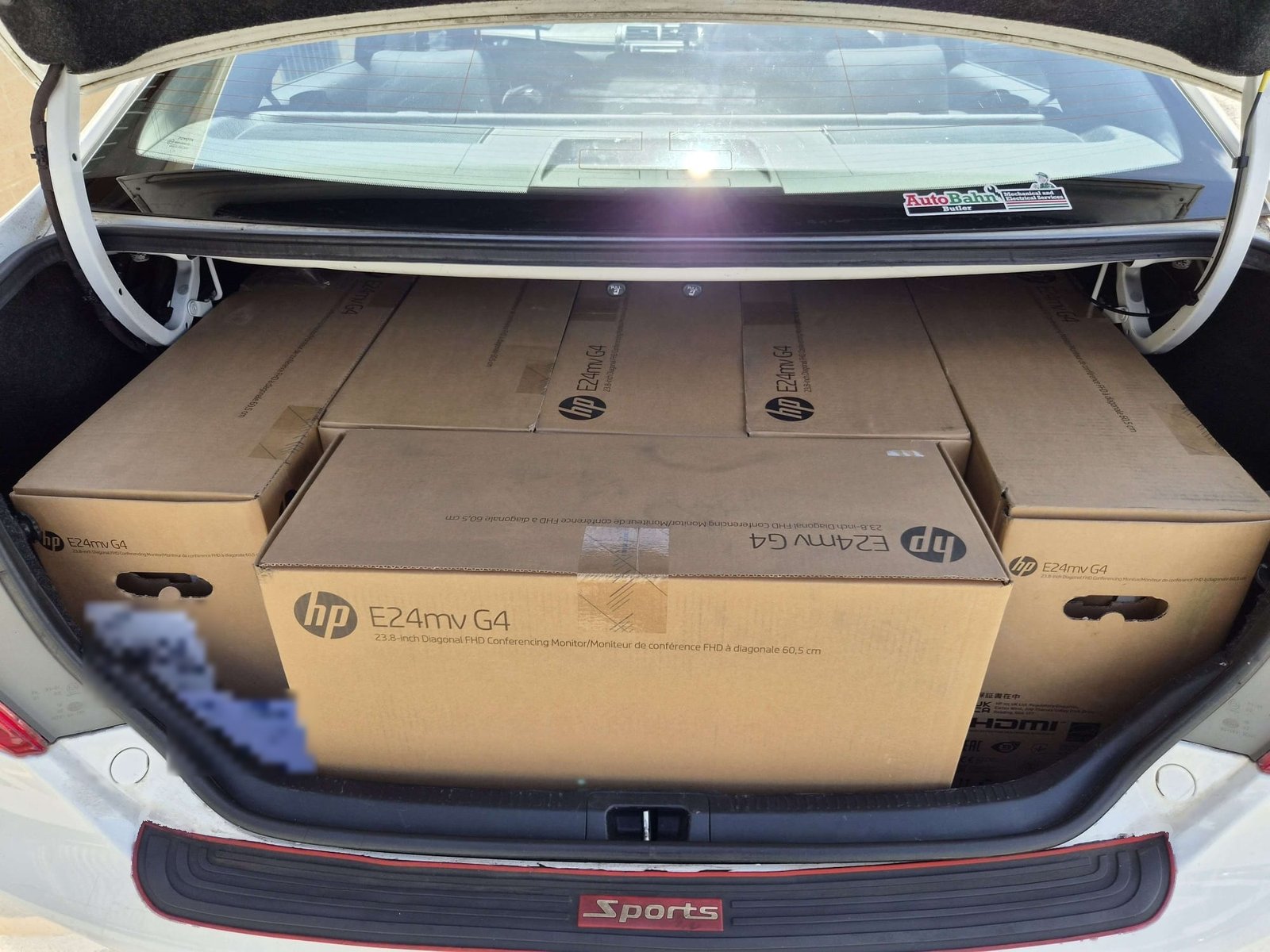
Tight squeeze on the way in.
Installed on a Sunday
We did the install on a Sunday with the practice closed. No doctor lost a session, no patients were moved, and the rooms were ready for Monday's list.
For a practice, that's the main thing. The hardware swap itself is quick. Losing a morning of consults to do it is not.
How it works with Zedmed telehealth
Zedmed's telehealth runs from inside the practice software, which keeps it simple for the doctor:
- The patient gets an SMS with a link and taps Join on their phone. There's no app for them to download.
- The doctor starts the consult from Zedmed, and the video opens in the browser on their PC. Zedmed's own guidance covers Chrome and Edge.
- The first time it runs, the browser asks for permission to use the camera and microphone. If someone clicks Block by accident, it has to be turned back on in the browser settings, so it's worth doing that first run yourself rather than leaving it to a doctor between patients.
- Zedmed recommends NBN 100/40 as a minimum for a site with up to three users, and a business grade plan above that.
Once it was set up, it just worked. The doctors have one screen, the patient taps a link, and that's it.
Checklist for each consult room
Whatever software or hardware you use, these are the things that make the difference.
- Plug in the USB cable. On a monitor with a built-in camera, the video comes through HDMI but the camera, microphones and speakers need the USB cable to the PC. No USB cable, no camera. It's an easy one to miss.
- Set the defaults. In Windows and in the browser, make sure the monitor's camera, microphone and speakers are selected, not a laptop's built-in ones or an old webcam.
- Check the lighting. A window behind the doctor turns them into a silhouette. Light should come from in front or the side.
- Think about who can hear. Speakers in a consult room are fine with the door closed. If the room is near the waiting area or the walls are thin, a headset is the safer option for some consults.
- Check the upload speed. Video needs upload as well as download. Plenty of plans that are fine for browsing struggle with several video calls at once.
- Do a test call. Doctor's PC to a mobile on 4G, in every room, before the first real patient.
FAQ
Do we need a separate webcam for telehealth? No. A monitor with a built-in camera, microphones and speakers covers it, and keeps the desk clear.
Do patients need to download an app for Zedmed telehealth? No. They receive an SMS with a join link and open it on their phone.
What internet speed do we need for telehealth? Zedmed recommends NBN 100/40 as a minimum for a site with up to three users, with business grade plans for larger sites. Upload speed matters as much as download.
Can the hardware be installed without closing the practice? Yes. We install on a weekend or after hours, so consults aren't affected.
Does this work with other practice software? The hardware does. Most clinical software either has video built in or works alongside a browser-based video service, and a conferencing monitor works the same way with any of them.